
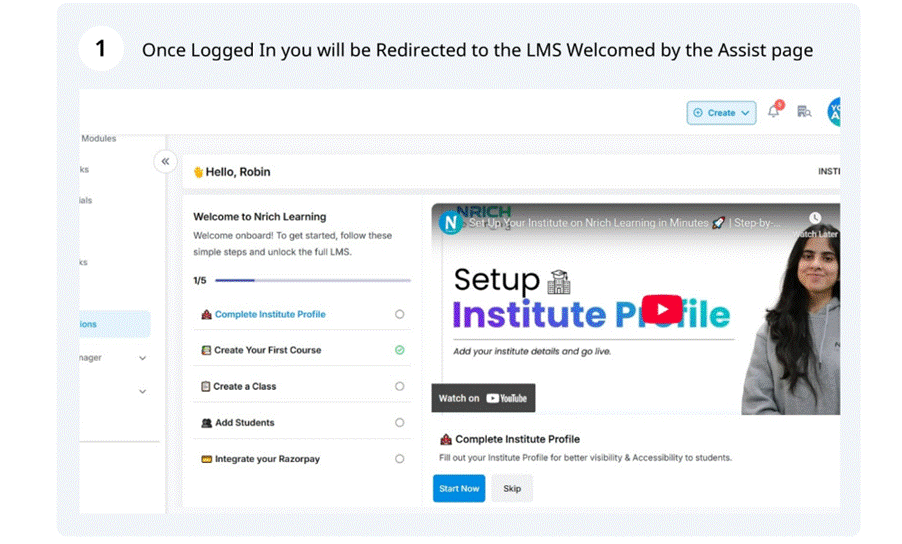
Think about this: how often do you wish you could sit down with your students or clients, one-on-one, without long email chains or scheduling confusion? That’s exactly why Nrich offers the 1:1 Consultation Call feature.
And the best part—it takes just a few minutes to set up. Let’s walk through it together.
Step 1: Log in and Navigate
After logging in, you’ll land on the Assist Page of your Nrich LMS.
Now look at the sidebar. See the option called Learning Manager? Under that, you’ll find 1:1 Consultations. Click it.
That’s your control room for consultations.
Step 2: Start Creating Your Call
Here’s a quick question: what kind of consultation are you planning? Is it career guidance, doubt-solving, or maybe a mentorship session?
Once you’re clear, click Create Call.
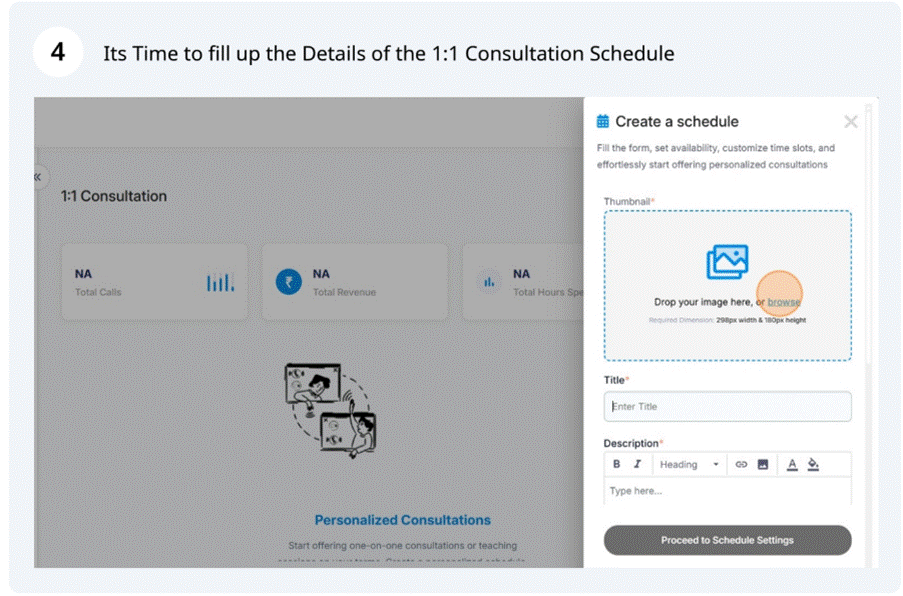
Step 3: Add the Essentials
This is where your consultation takes shape.
- Thumbnail: What image will help learners instantly know what this call is about? Specifications – width- 298 pixels & height- 180 pixels
- Title: Can you explain your consultation in just a few words?
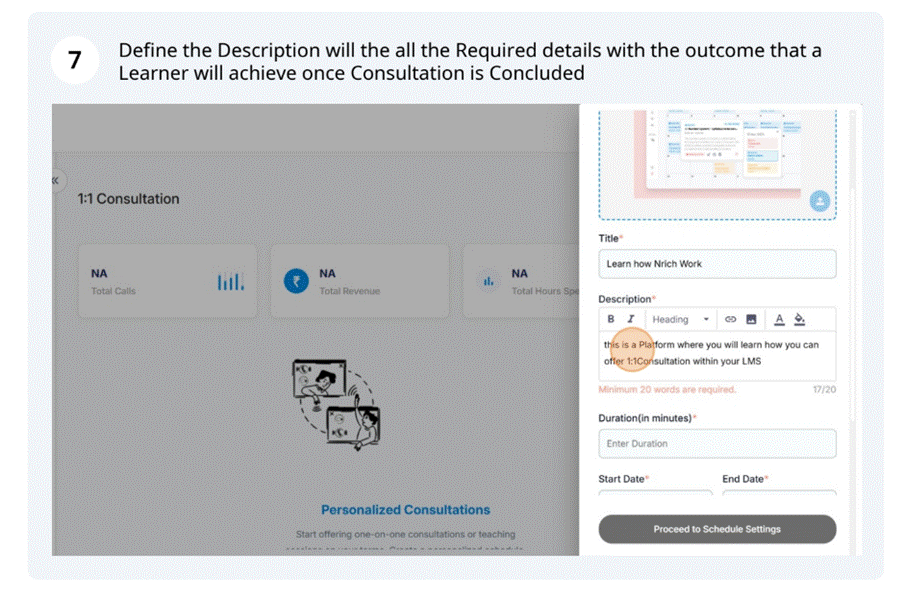
- Description: What outcomes will your learners get at the end of the call?
Write this part as if you’re speaking to them directly.

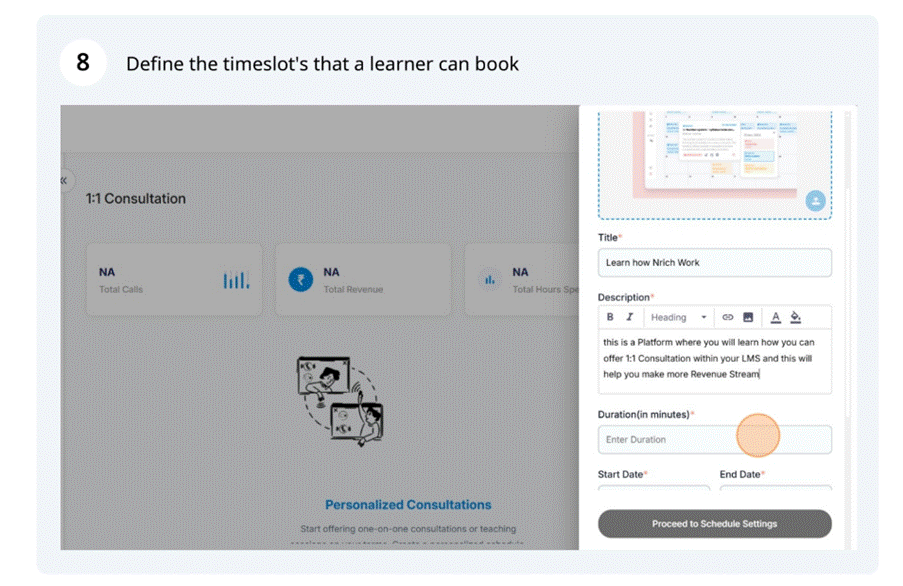
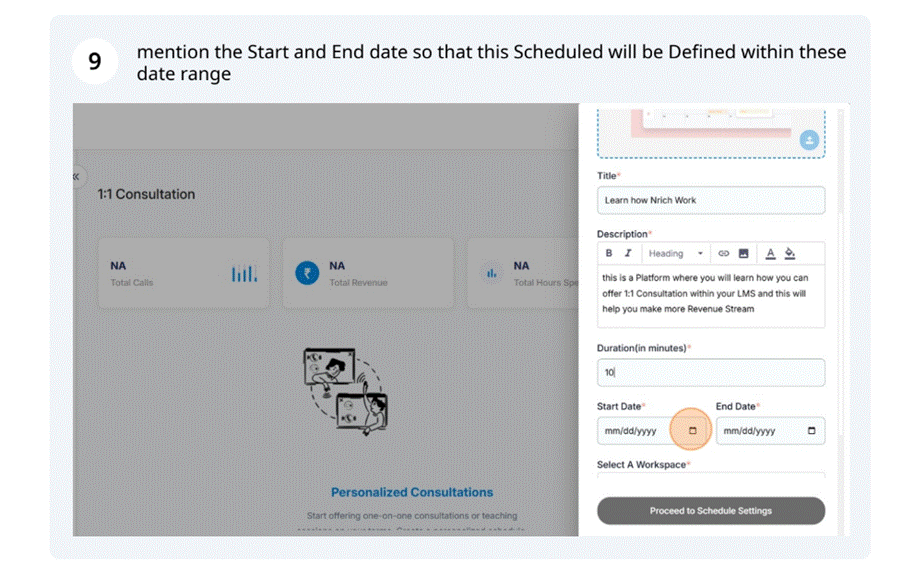
Step 4: Set Availability
Now, think about your schedule.
- When are you free? Morning, afternoon, or evening?
- Do you want to make it available only for a week, a month, or longer?
- Which video link will you use—Zoom, Google Meet, or another platform?
Add those details. This is how your learners will know when and how to join.

Step 5: Free or Paid?
Here’s a choice: do you want to offer your consultation for free, or would you like to charge for your expertise?
There’s no right or wrong here—it depends on your goals.
Step 6: Fine-Tune Your Schedule
To avoid chaos, let’s add some structure.
- Which days are you available every week?
- Are there holidays you need to block off?
- How much buffer time do you want between two sessions?
A few minutes of planning here will save you hours later.
Step 7: Assign a Teacher (if you’re not the one)
Running an institute? You can assign one of your teachers to handle this consultation.
If it’s just you, skip ahead.
Step 8: Review and Submit
Now pause for a moment. Does everything look right?
If yes, hit Submit. Congratulations—your consultation is now live.
Step 9: Manage Bookings as They Come
As learners start booking, you can check all their registrations under View Bookings.
And if you need to block a slot for any reason, you can disable it with a single click.
Last modified: October 15, 2025