
Want your learning platform to run on your custom domain (e.g. learn.yourcompany.com)? Here’s how to purchase the On-Domain (custom domain) plan and get it launched.
Steps to Purchase & Launch the On-Domain Plan

- Locate the On-Domain (Custom Domain) Plan
Scroll through the add-on / plan listings until you find the “On-Domain Plan” option.

- Click “Get Started” / “Buy Now”
Click Get Started or Buy Now on that plan to begin the checkout process.
- Enter GST Number (Optional)
If your organization has a GST number, fill it in for invoicing purposes (this is optional but helpful).
- Proceed to Payment
Click Proceed to Pay to move to checkout. Select Payment Method
Choose your preferred payment method (e.g. UPI, credit card, etc).
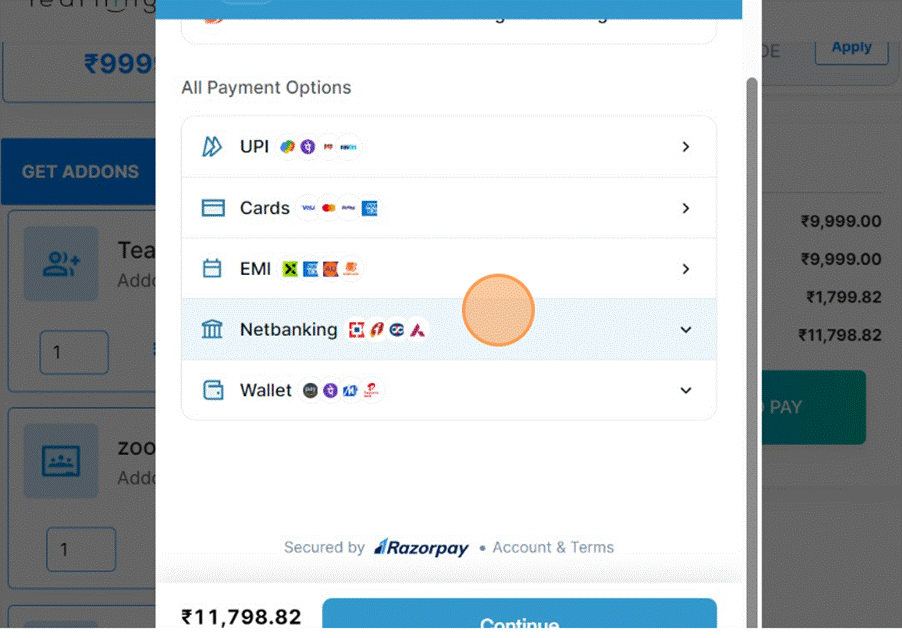
- Provide Payment Details
For example, if paying via UPI, enter your UPI ID (like yourid@bank). Then click Continue.
- Authorize / Complete Transaction
You’ll be redirected to the payment app or gateway. Approve the payment there.
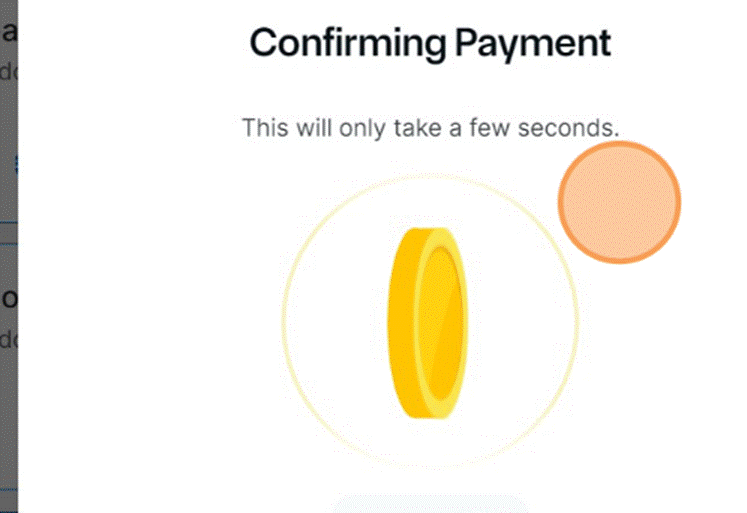
- Get Confirmation (“Payment Successful”)
After you complete payment, you should see a confirmation message like “Payment done successfully.”
- Launch / Activate the On-Domain Plan
Go to See Your Purchased Addons (or equivalent), find the On-Domain plan you just bought, and click Launch / Activate.
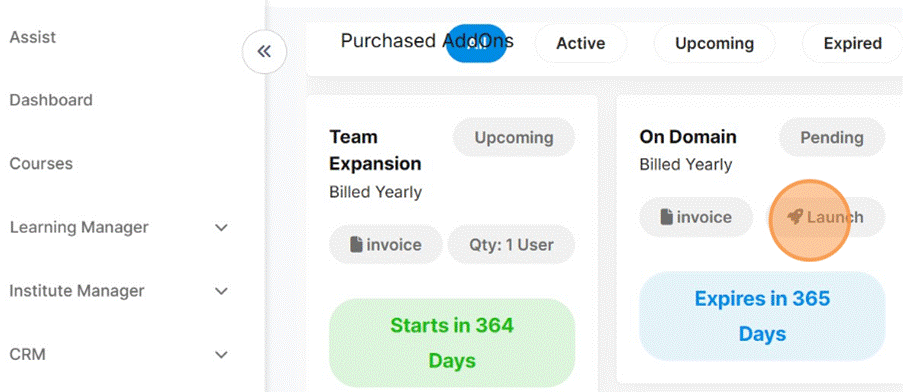
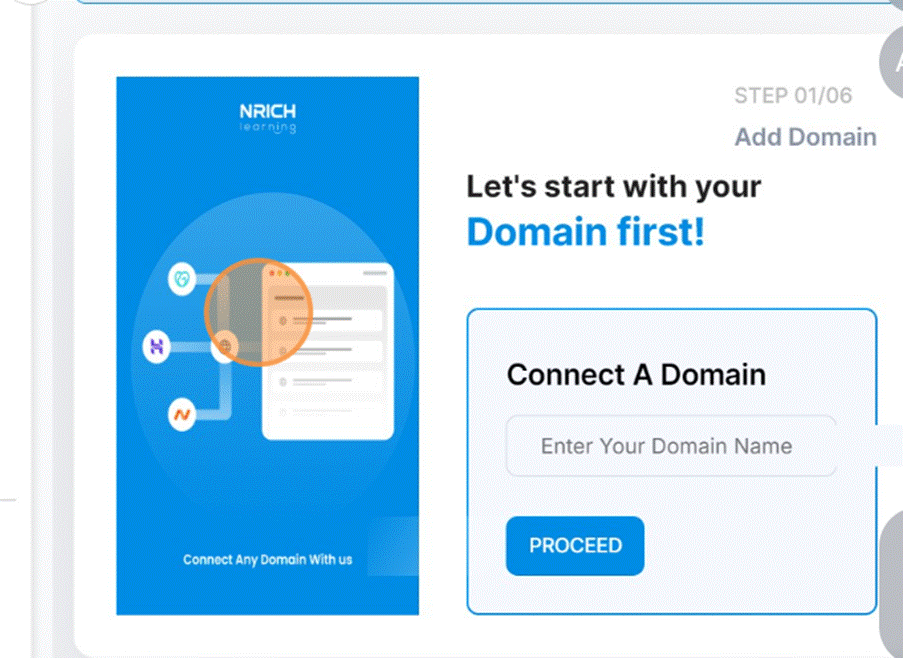
- Configure Your Custom Domain
This type of steps will appear
Was this article helpful?
YesNo
Last modified: October 15, 2025