
If you want your Nrich Learning site accessible via a custom URL, here’s how to add and configure a domain.
Steps to Add a Domain
- Login to Your Nrich Dashboard
Use your admin credentials to access your Nrich Learning dashboard.
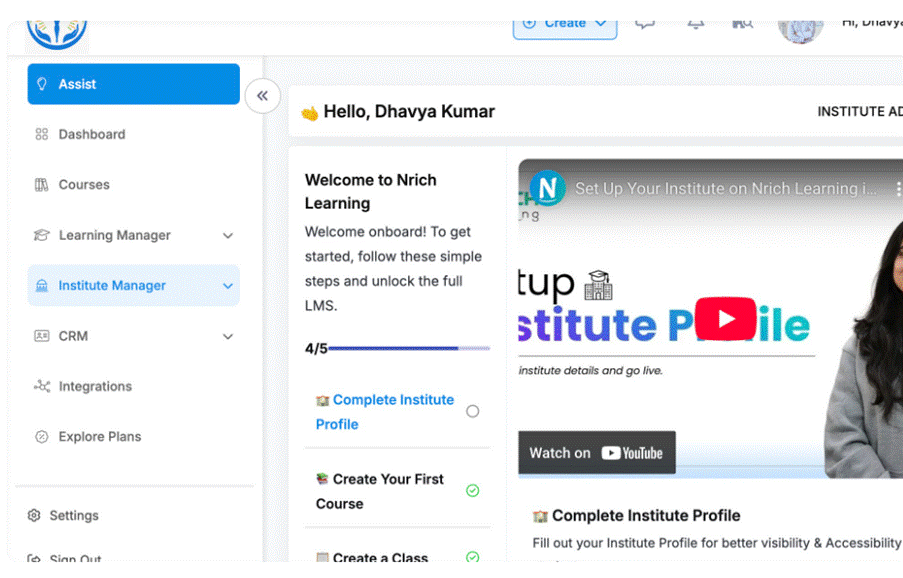
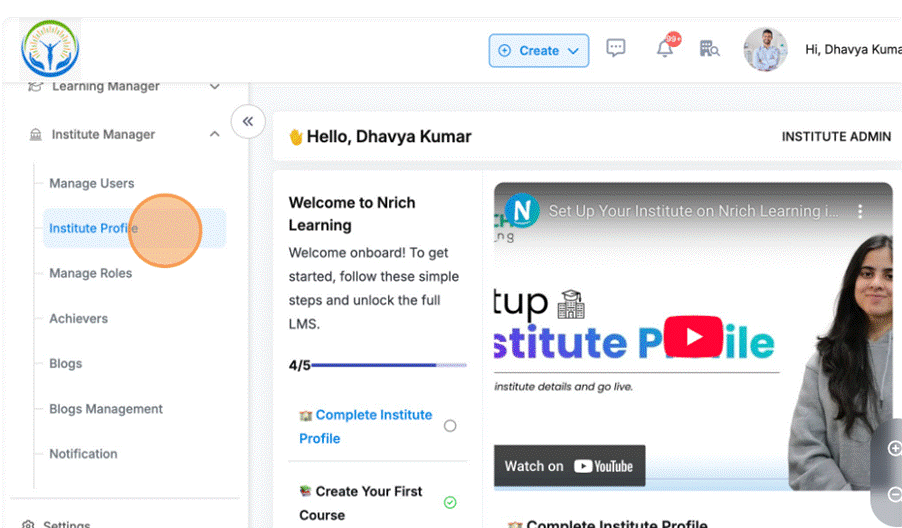
- Navigate to Institute manager -> Institute profile
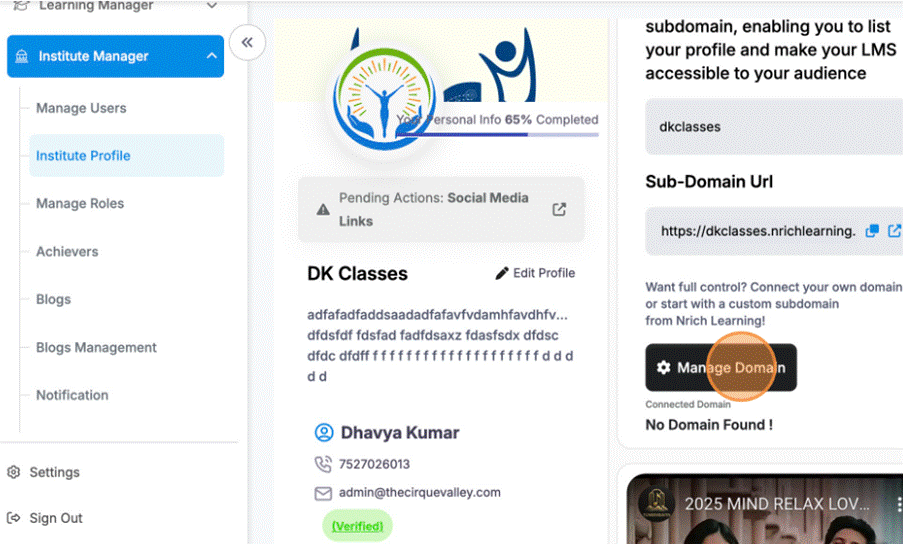
- Click “Manage Domain”
.
- Click the “Enter Your Domain Name” field.
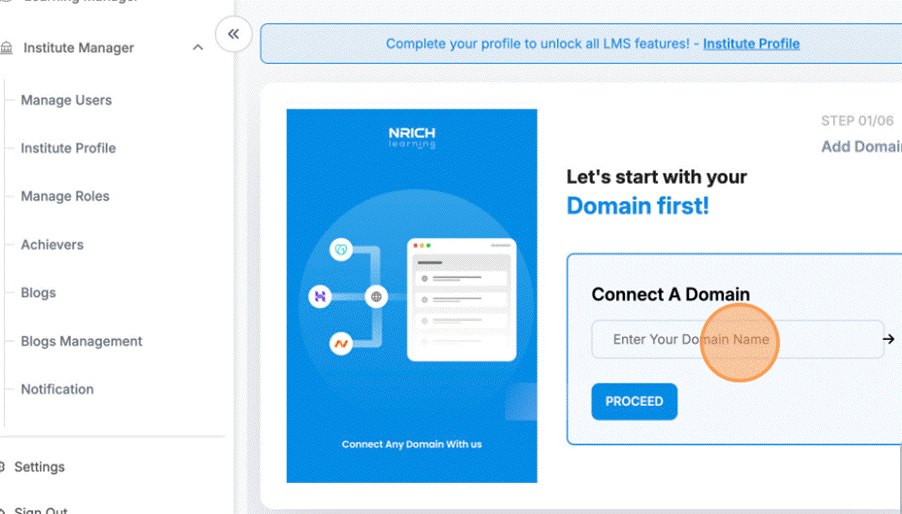
- Type “YourDomain Name“in the box
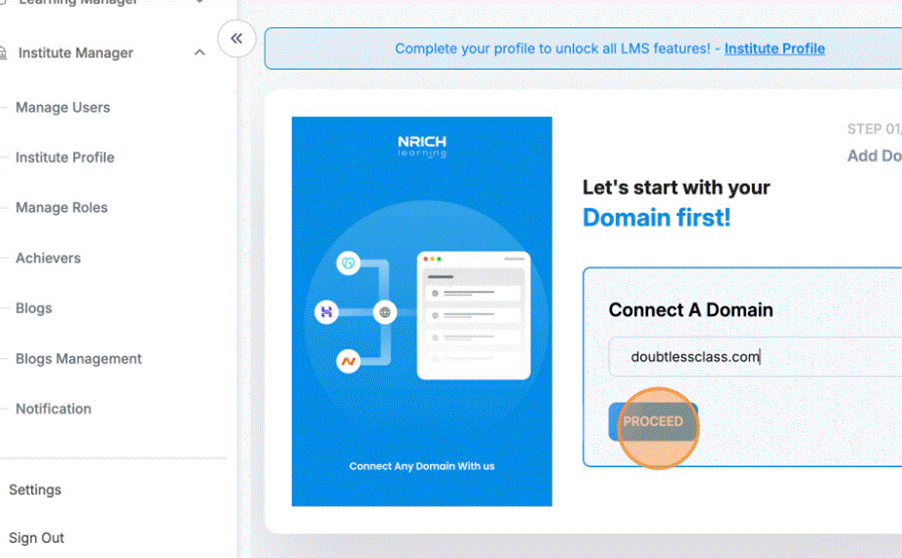
- Click here to copy the data.
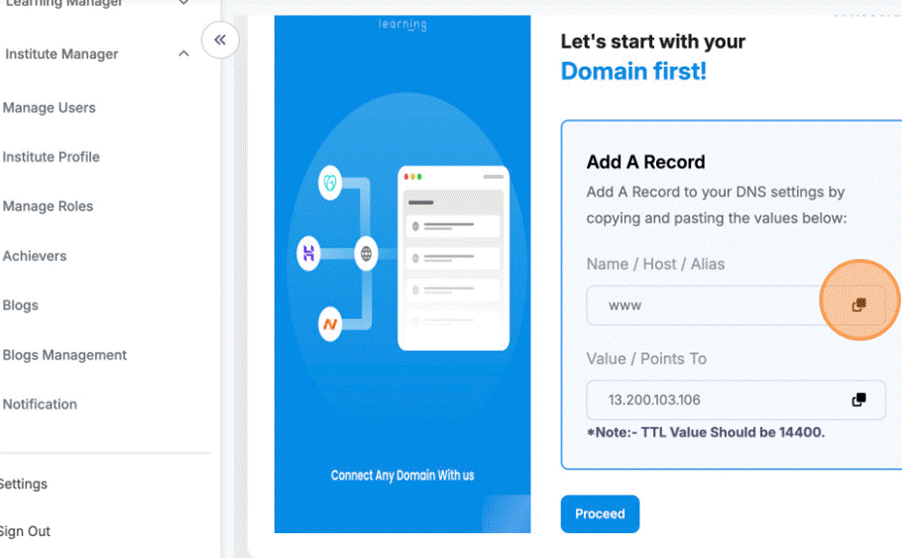
- Switch to tab Nrich | The Best Earning Platform for Creators
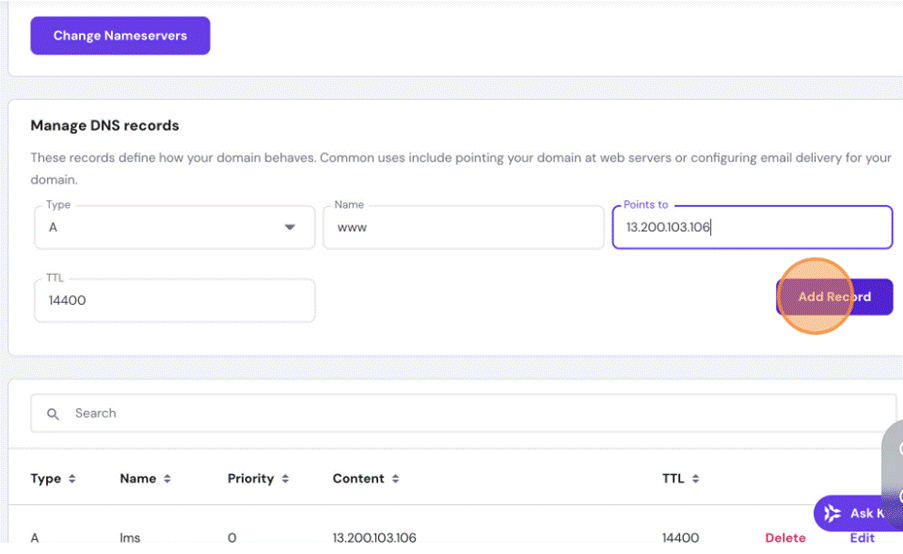
Navigate to platform where your Domain is managing. For example Hostinger. Click this text field.
- Click to Proceed

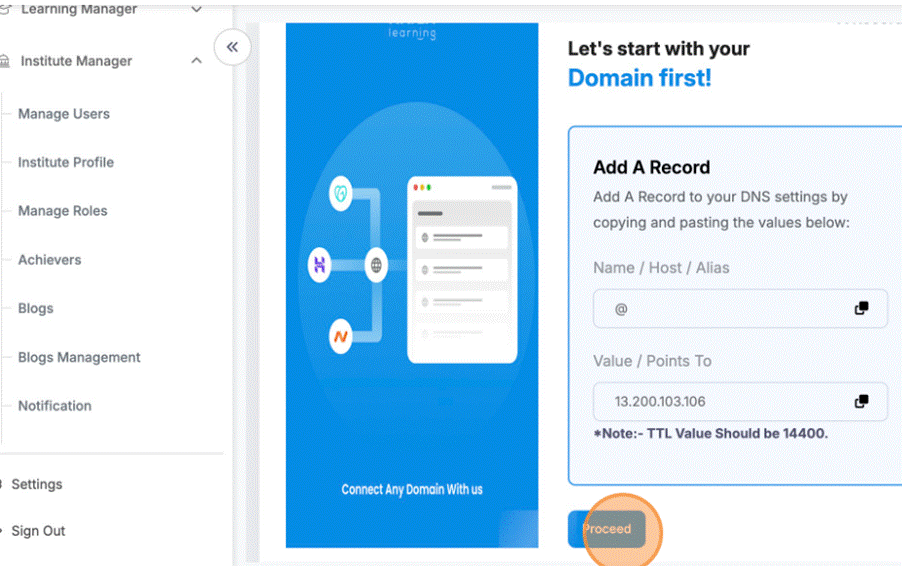
- Click here to copy these field data and paste where your domain is managed.
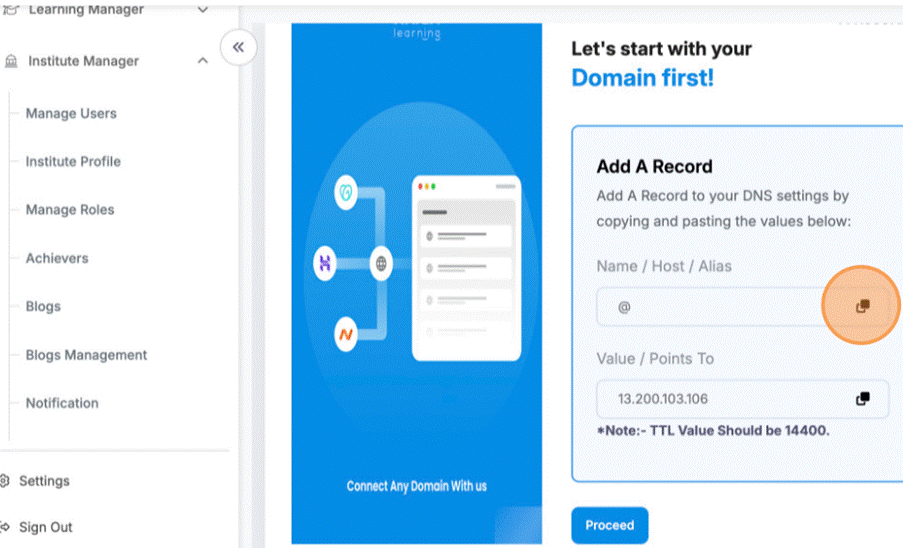
- Click here to copy these field data and paste on platform where your domain is managed.
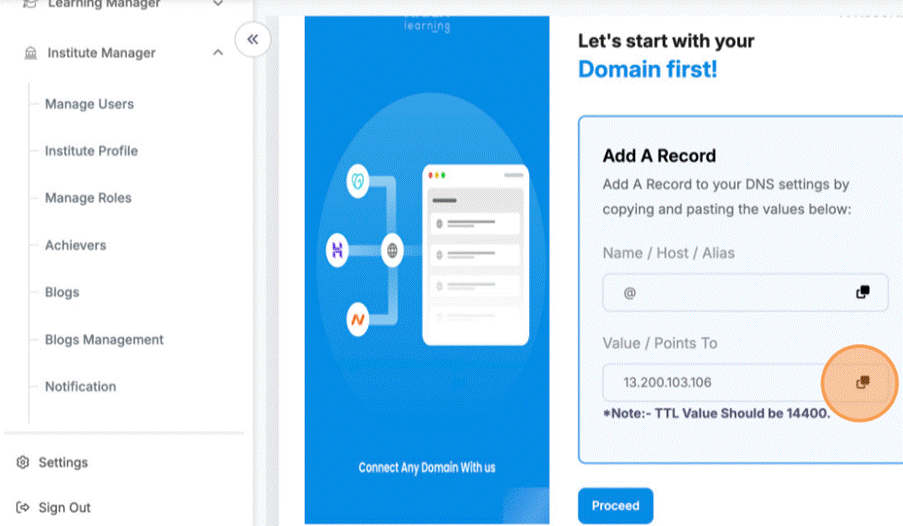
11. Paste the copies data like this.
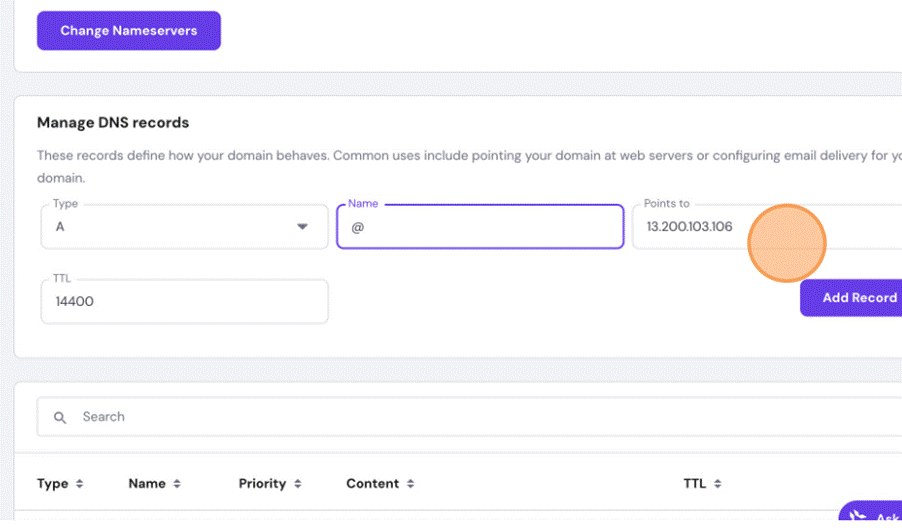
12. Click “Add Record”
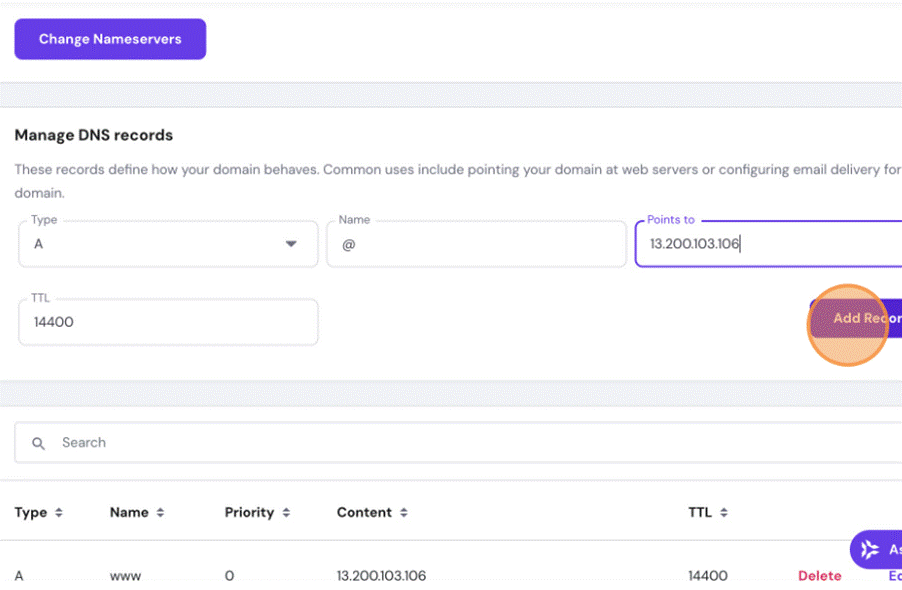
13. Click “Confirm”
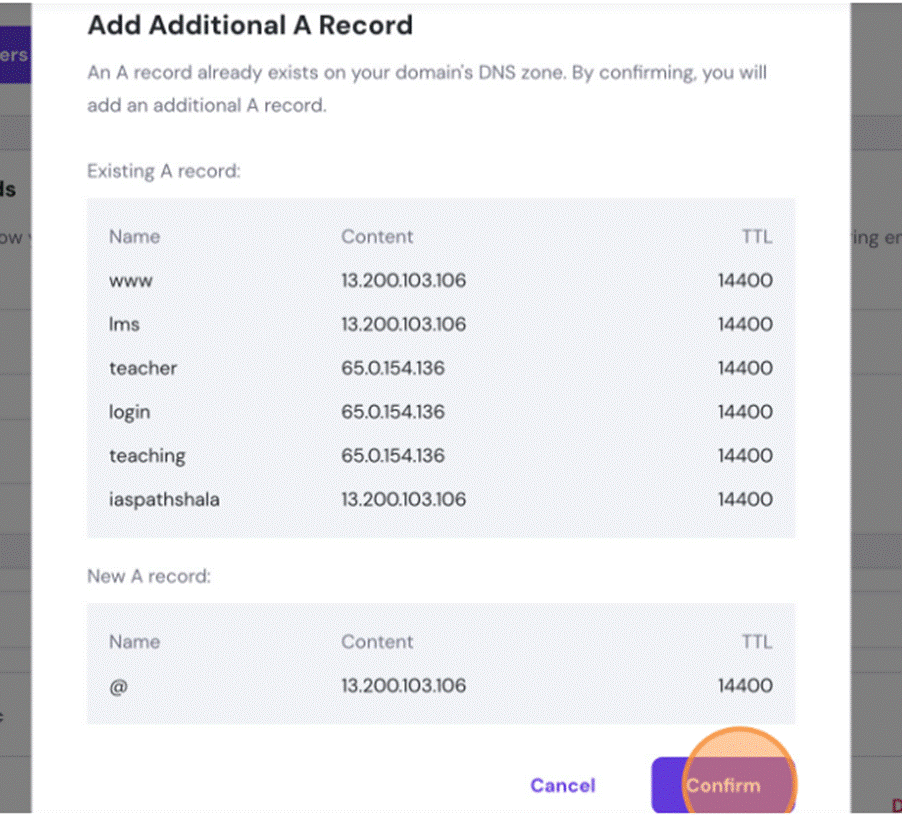
14. Click “Proceed”
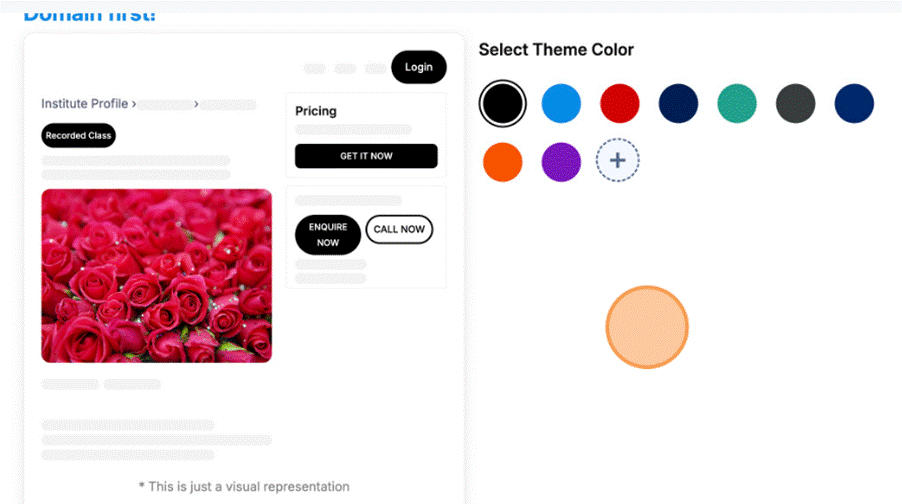
15. Click “Select Theme Color and choose the desired colour you want”
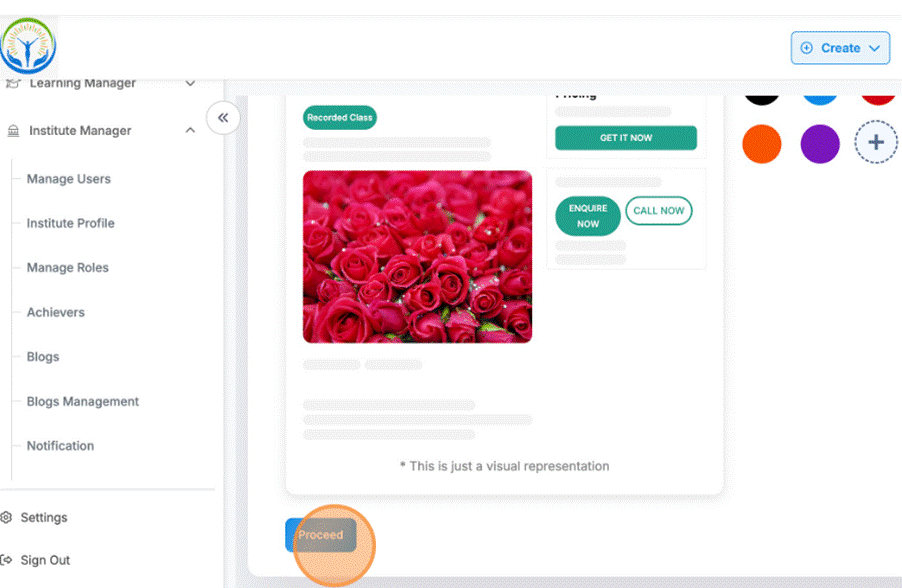
16. Click “Proceed”
17. Choose any theme from all the options
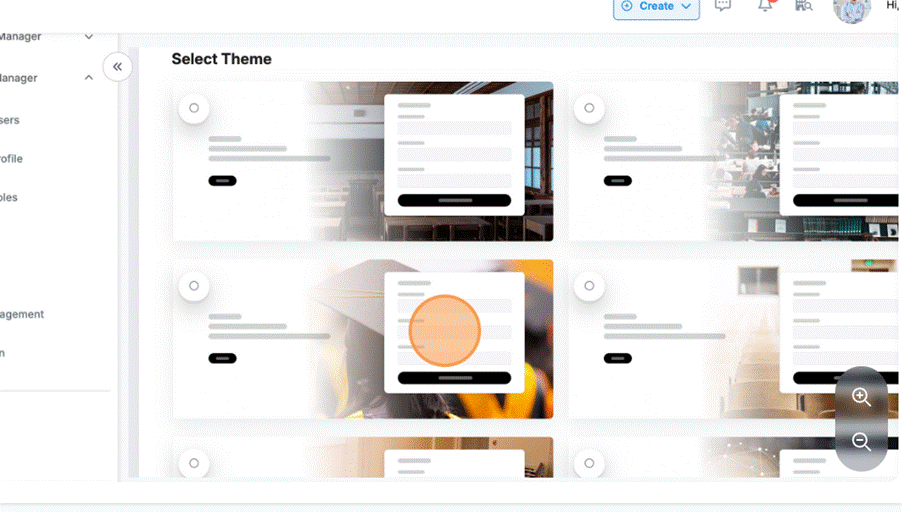
18. Click on Proceed
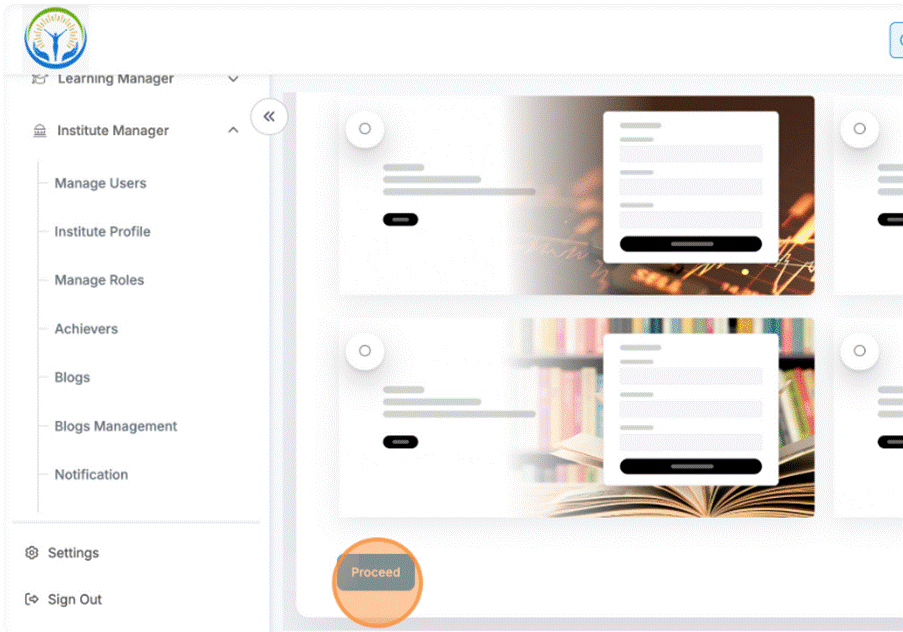
19. Choose the required field and then Click “Proceed”
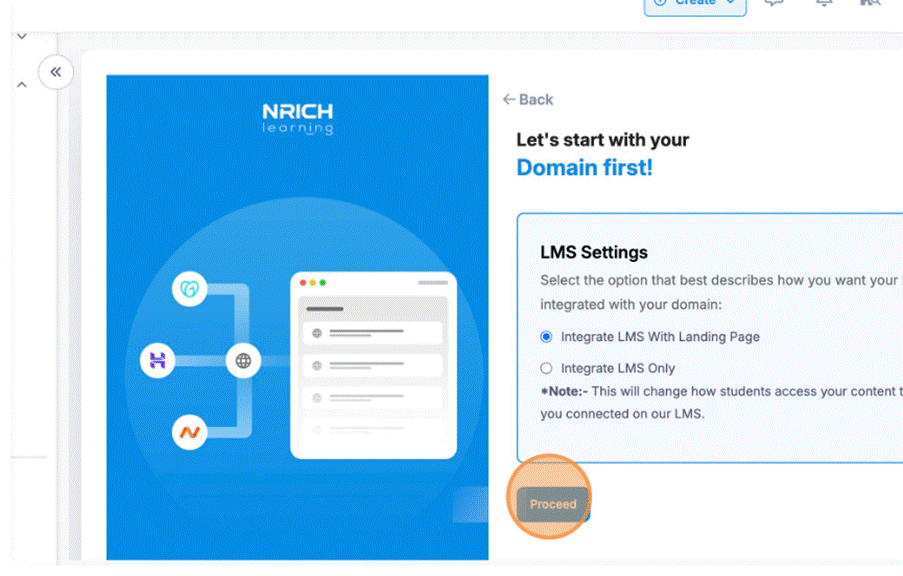
20. Click “Go To Domain Settings”
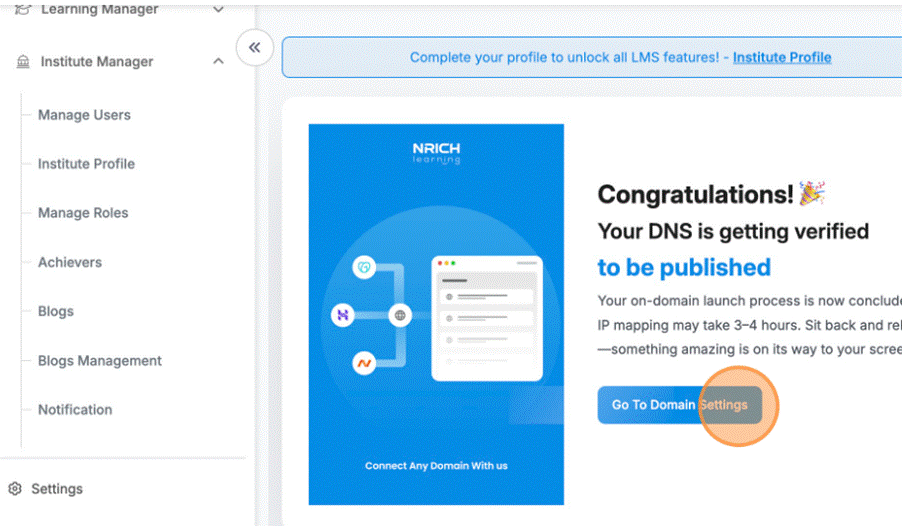
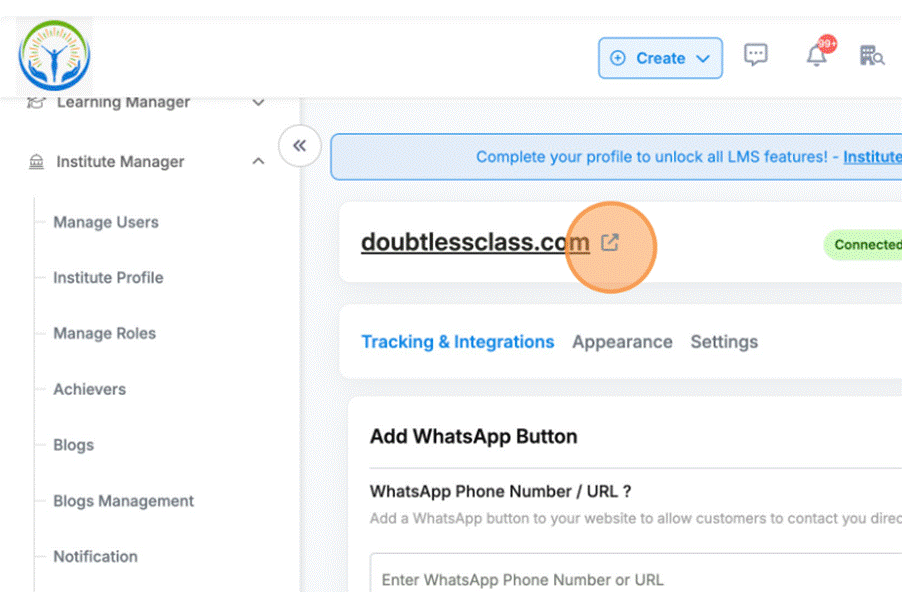
21.
Click here to view your On Domain website. Note that website takes 24-28 hours(maximum) to get live as this time is required for DNS to get resolved.
Was this article helpful?
YesNo
Last modified: October 15, 2025