(Chat, Newsfeed, and Social Settings)
The Social Connect features let learners and instructors engage more — chat, post updates, see a newsfeed. Here’s how to explore, enable, and manage it.
What Social Connect Includes
- Chat / Messaging — direct conversations or group chats
- Newsfeed / Social Posts — updates, announcements, posts
Steps to Explore & Enable
- Log In & Go to Social / Connect Section
In your Nrich dashboard, find the menu named “Social”, “Connect”, or similar.
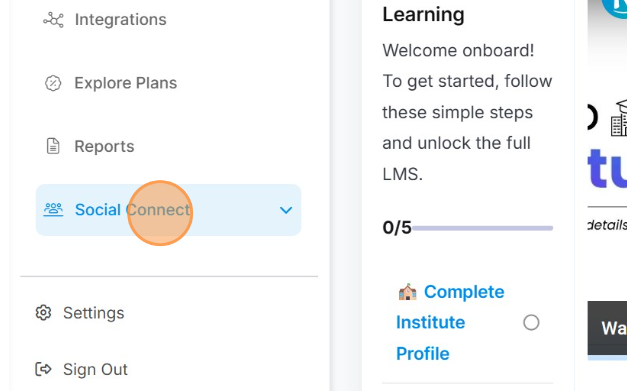
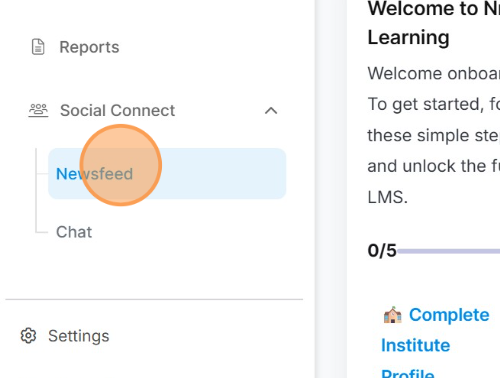
- Newsfeed option appears
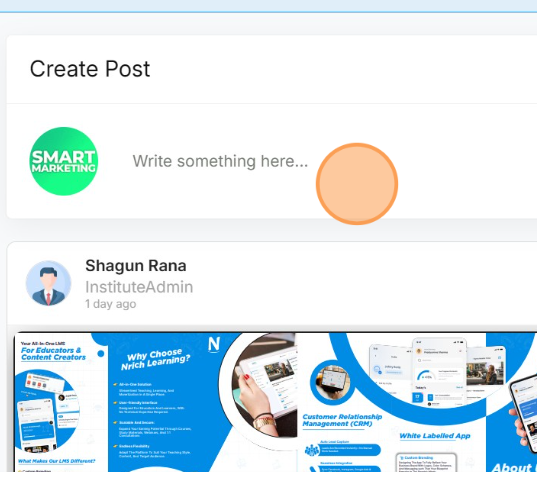
In this you can post your pdfs , pictures and videos among the students related to datesheets or even youtube links.
- Example – Click on Write something here
Here is already one pdf uploaded as you can see and it is scrollable
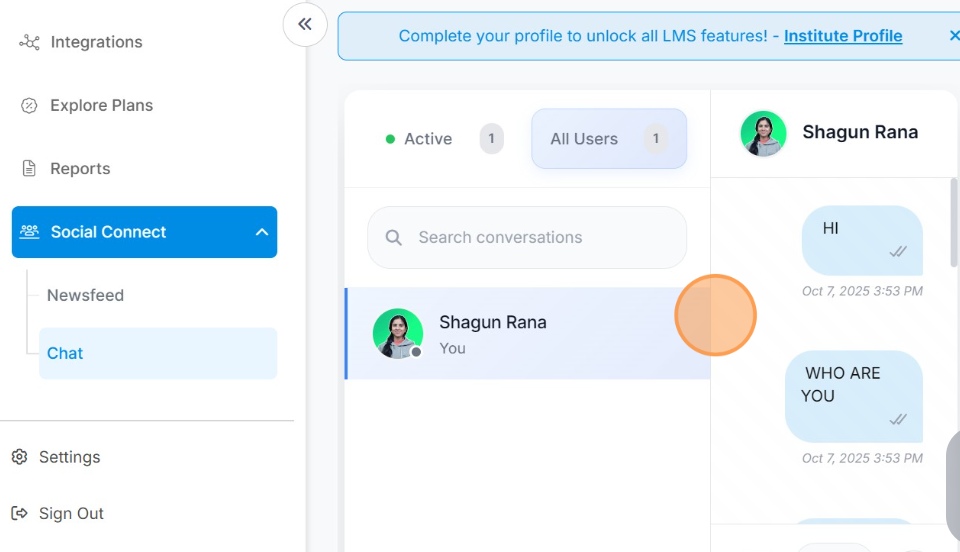
4. Chat option
In this you can chat among your community.
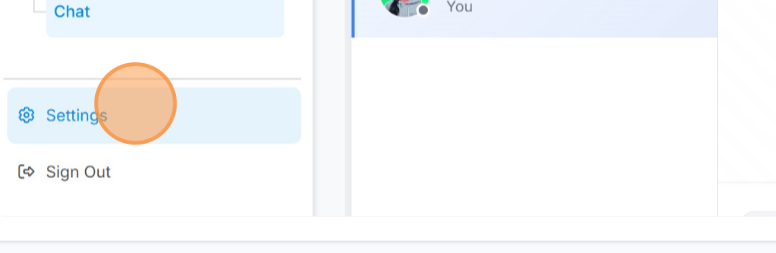
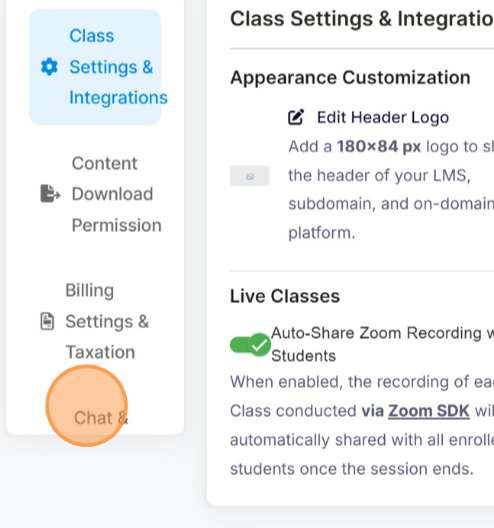
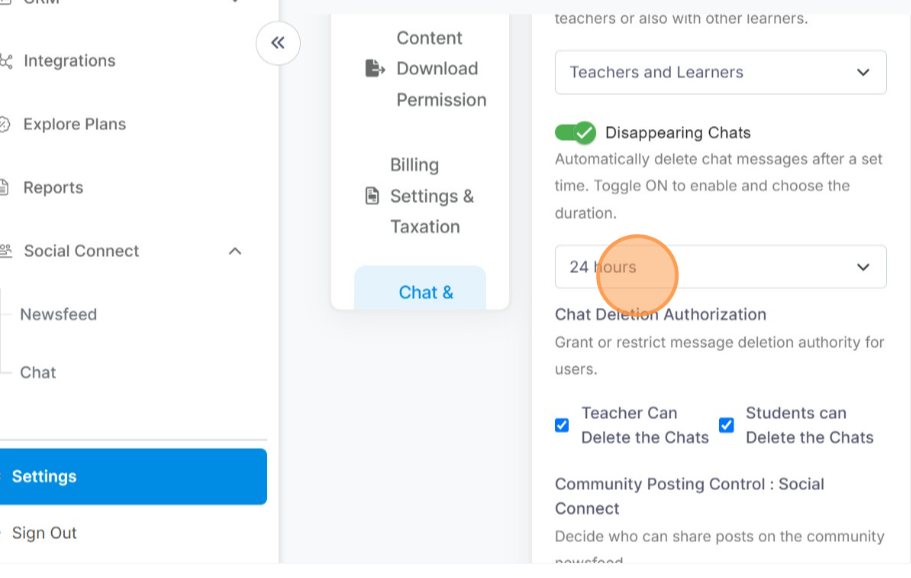
5. Configure Social Settings / Permissions
In Social Settings, define:
Who can post (all users, only instructors, only enrolled users)
Who can view posts / feed (everyone, just group members)
Chat permissions (who can start chats, message whom)
Moderation rules (post approvals, deletion rights, reporting)
6. Save & Apply Settings
After defining settings, click Save or Apply to turn them live.
7. Moderation & Admin Oversight
As admin, you can monitor posts, delete or block as required
You can adjust permissions over time based on how your community grows
Last modified: October 15, 2025